The Users page presents options for creating identities with access to the permitting and routing system.
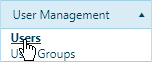
Navigate to the Users screen by clicking the My Admin link then choosing Users from the User Management pane.
When the Users page opens, expand the Organization Roles and Organization Types drop-downs then choose from the available options.

Enter the name of the Organization to which the user belongs in the field provided; while you type, the system is already searching the database for matching information. Choose from the available options.

Note: Most of the time, you will need to enter no more than three digits before the system begins presenting you with likely options.
Check the Anywhere in the Name box to have the system find matches that contain the letters for which you are searching within words rather than only at the beginning.
Click the Add a Record button.
When the Add/Edit Users page opens, enter the required information in the fields provided.
Click the Save button include the new record on the table or click the Cancel button to clear the fields and close this dialog.
Navigate to the Users screen by clicking the My Admin link then choosing Users from the User Management pane.
When the Users page opens, expand the Organization Roles and Organization Types drop-downs then choose from the available options.
Enter the name of the Organization to which the user belongs in the field provided; while you type, the system is already searching the database for matching information. Choose from the available options.
Note: Most of the time, you will need to enter no more than three digits before the system begins presenting you with likely options.
Check the Anywhere in the Name box to have the system find matches that contain the letters for which you are searching within words rather than only at the beginning.
Choose a record from the table then click the Edit button.

When the Add/Edit Users page opens, alter the information as needed then click the Save button to apply your changes or click the Cancel button to close this page without making any changes.
Navigate to the Users screen by clicking the My Admin link then choosing Users from the User Management pane.
When the Users page opens, expand the Organization Roles and Organization Types drop-downs then choose from the available options.
Enter the name of the Organization to which the user belongs in the field provided; while you type, the system is already searching the database for matching information. Choose from the available options.
Note: Most of the time, you will need to enter no more than three digits before the system begins presenting you with likely options.
Check the Anywhere in the Name box to have the system find matches that contain the letters for which you are searching within words rather than only at the beginning.
Choose a record from the table then click the Delete button.

The User's identity is removed from the database.

Export to Excel – click the Export to Excel button to generate an .xlsx file of the contents of the table
Export to PDF – click the Export to PDF button to generate an .pdf file of the contents of the table
Expand the User Type drop-down and choose the group to which you wish to send the contents of the table
Email Users w/ Client – click the Email Users w/ Client button to send the contents of the table to users via your default email client (you must have designated a default email client in Windows)
Email Users – click the Email Users button to send the contents of the table to the selected users