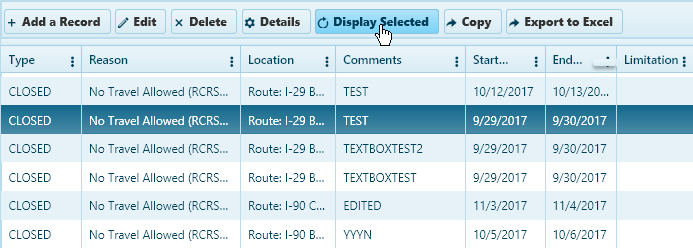
Use the Restriction Manager page to find, create, review, and maintain a list of conditions that may be applied to portions of a route or to a permit.
Use the Restriction Information to Query conditions by route, location, type, or date. You can then Display the results on the Map.
Navigate to the Restriction Manager screen by clicking the My Admin link then choosing Restriction Manager from the Route Restrictions and Utilities pane.
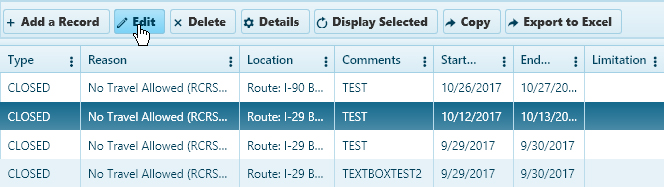
When the Restrictions page opens, scroll down to the bottom of the page and select the desired restriction from the table then click the Display Selected button.
Note: If the desired restriction is not visible on the table, use the Query features on the Restriction Information pane.
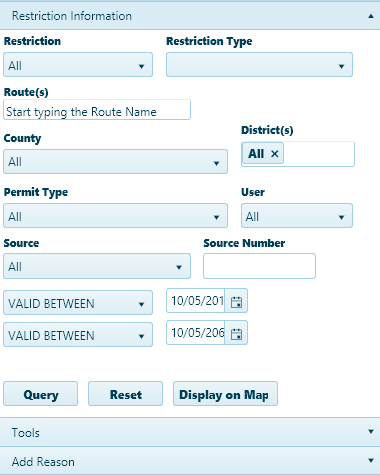
Choose which variable or set of variables is most likely to return the desired result:
Expand the Restriction and Restriction Type drop-downs then choose from the available options.
Enter the name of the Route in the field provided; while you type, the system is already searching the database for matching information. Choose from the available options.
Note: Most of the time, you will need to enter no more than three letters or digits before the system begins presenting you with likely options.
Expand the County drop-down and choose from the available options and/or enter a District number in the field provided.
Choose a Permit type, a User type, and/or a Source before supplying a Source Number.
Define a period to restrict results by choosing a date (or a pair of dates) and the appropriate option from the drop-down.
Click the Query button to execute your search.
Click the Display on Map button to view the locations impacted by the restrictions.
To create a new restriction, scroll down to the table at the bottom of the page and click the Add a Record button.
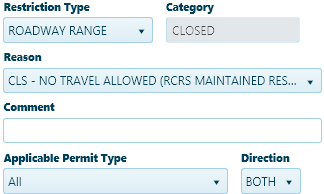
Expand the Restriction Type drop-down and choose from the available options then enter a Category in the field provided. Be sure to choose a Reason and to identify the Applicable Permit Type before entering a name for the restriction in the Comment field (this will help you find it on the table should you need the record again later).
Define the impact zone of the restriction.
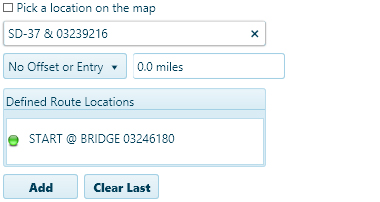
Check the Pick a Location on the Map box to equip your cursor to define a start location, mark points of transition, and designate your destination.
Or, you can enter the first few characters of a name (ex, I-90, SD-, or Puk for Pukwana). Give the system a few seconds, and it will present you with recognized locations that begin with the characters you’ve entered. Choose from the available options and strike the Enter key to include the location in the restriction.
Click the Add button to include a location in the restriction.
Click the Clear Last button to remove the last entered location from the restriction.
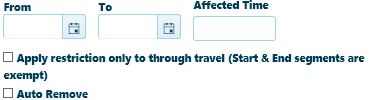
Establish the duration of a restriction by clicking the calendar icon and choosing a From and a To date.
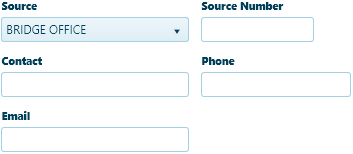
From the Source drop-down, choose the office that is imposing the restriction then provide Contact information for question about the restriction.
Click the Update button to include the new restriction in the database, or click the Cancel button close the dialog without editing the restriction.
Scroll down to the bottom of the page and select the desired restriction from the table then click the Edit button.
Scroll up to the Restriction Information pane and make your changes then click the Update button (to include any new/altered information in the database) or click Cancel (to close the dialog without editing the restriction).
Scroll down to the bottom of the page and select the desired restriction from the table then click the Edit button.
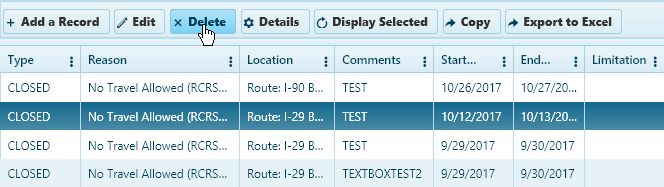
Click the Delete button to remove the record from the database.