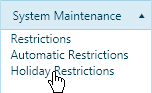
Use the Holiday Restrictions page to create and maintain a list of dates that may be manually applied to permits.
Navigate to the Holiday Restrictions screen by clicking the My Admin link then choosing Holiday Restrictions from the System Maintenance pane.
The Holiday Restrictions page opens.
Enter a Date in the mm/dd/yyyy format or click the calendar icon to choose the desired date.
Click the Add button to include the new date in the database or click the Reset button (to clear all of the information you've entered).

Navigate to the Holiday Restrictions screen by clicking the My Admin link then choosing Holiday Restrictions from the System Maintenance pane.
The Holiday Restrictions page opens.
Expand the drop-down and choose the restriction that you wish to update.
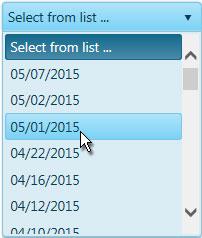
If you wish to make changes to the date, edit the information on the page then click the Update button (to include any new/altered information in the database) or click the Reset button (to eliminate any changes you have made in the current work session and restore the record to its most recently saved state).

Navigate to the Holiday Restrictions screen by clicking the My Admin link then choosing Holiday Restrictions from the System Maintenance pane.
The Holiday Restrictions page opens.
Expand the drop-down and choose the restriction that you wish to delete.
Click the Delete button to remove the record from the database.
